Profile Craft
Part of Professional social profile reviews
Reviewing LinkedIn Profile Links and Featured Materials
Review profile links and Featured samples for working destinations, accurate context, permissions and visitor visibility.
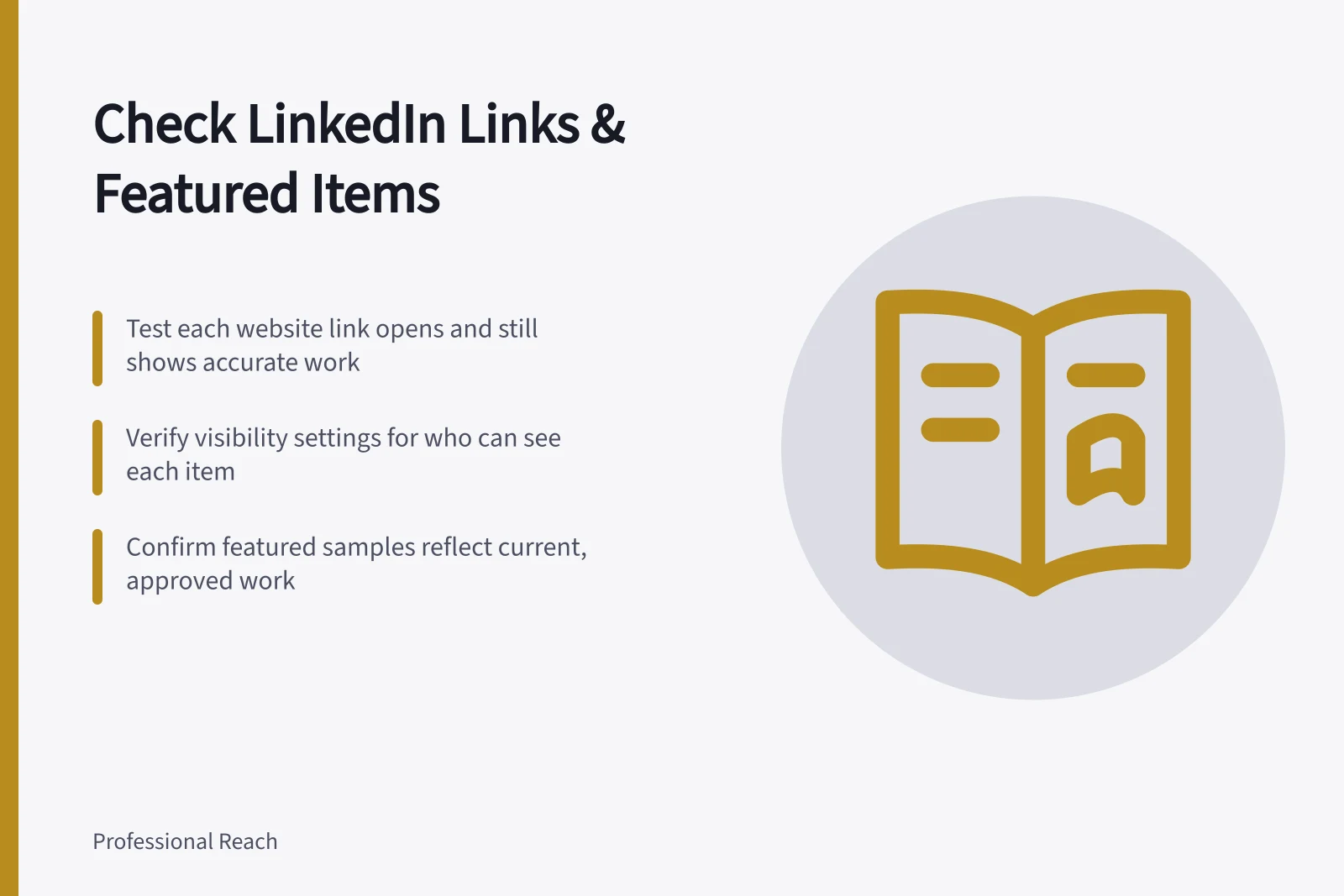
Review LinkedIn profile website links and Featured work samples in sequence: identify each item, test whether its destination opens, confirm it still represents your work accurately, then check who can see it. Recheck the displayed details and destination after editing.
Inventory the destinations
On a LinkedIn member profile, review website links and Featured samples of your work. Record each item’s visible title, destination, reason for keeping it and destination owner; include uploaded files as well as websites.
For website-link changes, refer to LinkedIn Help, “Add or remove a website from your profile”: linkedin.com
For Featured samples, refer to LinkedIn Learning Help, “Manage featured samples of your work on your LinkedIn profile”: linkedin.com and “Featured section on your profile FAQs”: linkedin.com
Open each item in the context relevant to its intended visitor, rather than relying only on your editing access. Check for a missing page, unexpected sign-in, permission request or replacement content.
Check the impression each item creates
Ask what each item demonstrates and what a visitor might wrongly infer. A presentation may show how you explain a subject without proving you led the entire project; a portfolio page may still advertise a service you no longer provide.
Add accurate context in the available title, description or profile text, or remove the item if its main impression cannot be corrected. Check permission before retaining employer or customer material; if approval is uncertain, hold the item while its owner reviews its use.
Read a proposed replacement destination before treating it as equivalent to a dead link. Featured order can affect the account of your current work, so identify an older sample’s period and your contribution rather than letting it imply current work.
Check visibility separately
LinkedIn Help’s “What People Can See on Your Profile” is at linkedin.com. Check visibility in the relevant account and visitor context rather than assuming every element reaches the same audience.
If an unsigned visitor needs the explanation behind a claim, do not leave it solely in Featured. After editing, recheck the displayed title, description and destination, and note items whose facts or permissions need another review.
Key Visibility and Access Settings on LinkedIn Profiles
- Default visibility for all profile elements
- Public (visible to anyone)
- Restricted access items (e.g., internal documents)
- Visible only to connections or specific audiences
- Featured section visibility
- Depends on profile privacy settings and viewer status